Engineering guide · 30 minutes
How to Publish and Version AI-Generated HTML Dashboards
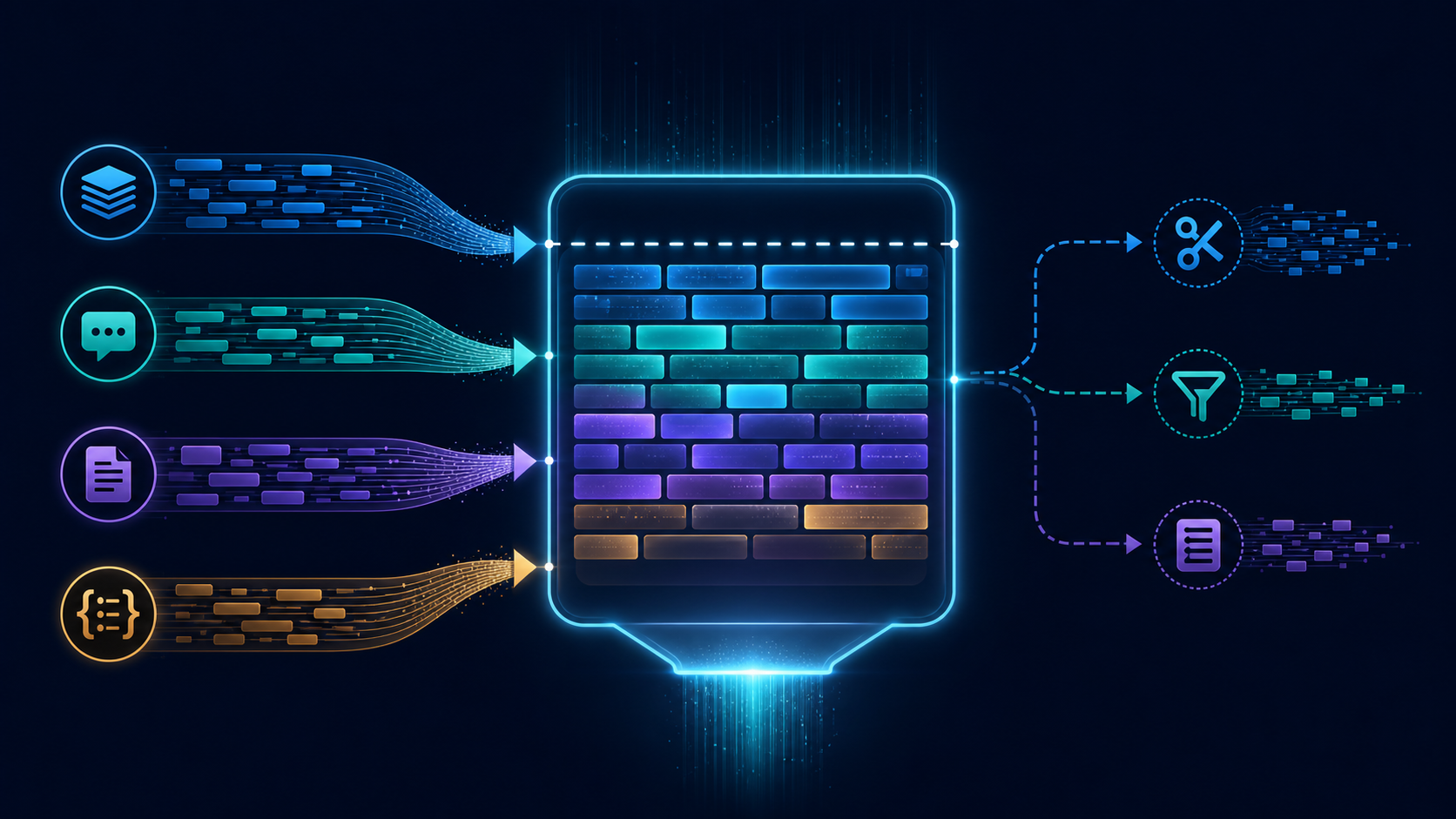
A practical, reproducible workflow for turning generated reports into controlled, reviewable web pages with self-hosted OnePage.
AI can produce a convincing dashboard in a few minutes. The operational problem starts after that: one file is emailed to a colleague, another is copied into a shared folder, and a third is quietly edited before a meeting. Soon nobody knows which report is current, who may see it, or how to restore the previous version.
This guide uses OnePage as a small publishing layer for static HTML reports. You will deploy it with Docker, publish a report, publish an update, roll back to an earlier version, and configure access restrictions. The commands are designed as a repeatable runbook. They are examples until you run them against the exact OnePage repository and release you selected.
The concrete case
Imagine a weekly operations report generated as a single HTML file. It contains charts, a table of incidents, and a short narrative. The report is useful, but it has four requirements:
- Readers need one stable URL.
- Only an approved group may open it.
- Each update must remain identifiable.
- A bad update must be reversible without rebuilding the report.
The desired flow is:
AI output → review → publish version 1 → publish version 2
                                      ↓
                                rollback to version 1
The important design choice is to treat the published report as a release, not as a file that people overwrite. The current URL can point to the latest approved release while the system retains earlier releases for comparison and recovery.
What you need before starting
Prepare a Linux host or another machine that can run Docker, a domain or internal hostname if the report must be reachable by others, and a directory reserved for OnePage data. You also need an HTML report that opens correctly when served by a web server.
Check the local tools:
docker --version
docker compose version
curl --version
These commands only check that the commands are available. They do not prove that the selected OnePage image, database, storage backend, or authentication provider is compatible with your host.
1. Create an isolated deployment directory
Keep application configuration and persistent data in a clearly named directory. This makes backups, upgrades, and audits easier to reason about.
mkdir -p onepage-dashboard/{data,config,reports}
cd onepage-dashboard
Put your working report in reports/. For this walkthrough, use the name operations.html:
cp /path/to/operations.html reports/operations.htmlDo not put passwords, API keys, customer exports, or raw personal data in the repository or in a report used for testing. Use synthetic values such as Example Team and 2026-11-22.
2. Pin the OnePage release
Do not begin with an unpinned latest image in a production-like environment. A moving tag can change the application without changing your Compose file. Select a documented OnePage release or an immutable image digest.
The following is a template. The image name and variable names are intentionally placeholders because they must come from the OnePage documentation for your chosen release:
cat > compose.yaml <<'YAML'
services:
  onepage:
    image: REGISTRY/ONEPAGE:PINNED_VERSION
    restart: unless-stopped
    ports:
      - "127.0.0.1:8080:8080"
    env_file:
      - .env
    volumes:
      - ./data:/var/lib/onepage
      - ./config:/etc/onepage
YAML
Using 127.0.0.1 keeps the application off the public network when a reverse proxy will provide the external endpoint. If the product documentation specifies another internal port or data directory, use those values instead.
3. Configure secrets without committing them
Create a local environment file with a long, unique administrator secret. The names below are examples, not verified OnePage settings:
cat > .env <<'ENV'
ONEPAGE_ADMIN_USER=admin
ONEPAGE_ADMIN_PASSWORD=REPLACE_WITH_A_LONG_RANDOM_VALUE
ONEPAGE_SESSION_SECRET=REPLACE_WITH_ANOTHER_LONG_RANDOM_VALUE
ONEPAGE_PUBLIC_URL=http://localhost:8080
ENV

chmod 600 .env
Generate values with a password manager or a local random generator. Never include the resulting values in this article, a screenshot, a ticket, or a shell history that will be shared.
Before starting the service, inspect the configuration for accidental placeholders:
sed -n '1,120p' compose.yaml
sed -n '1,120p' .env
This is a manual review step. It does not validate that the application accepts the variables.
4. Start OnePage
docker compose pull
docker compose up -d
docker compose ps
docker compose logs --tail=100 onepage
A successful start should be confirmed using the OnePage health endpoint or its documented web interface. If the project documents a health path, test that exact path:
curl -i http://127.0.0.1:8080/HEALTH_PATHDo not interpret a running container alone as proof that publishing works. A container can be running while its storage, migration, authentication, or upload route is misconfigured.
5. Publish the first dashboard version
Open the OnePage administration interface or use its documented command-line/API client. Create a project called operations-weekly. If the interface supports a slug, keep it short and stable; the slug should identify the report, not the date.
Upload reports/operations.html as the first release. Add metadata that makes the release understandable later:
- Version label:
2026-11-22.1 - Source:
AI draft reviewed by operations - Change note:
Initial publication
If OnePage provides an API, the request will usually resemble this shape, but the actual route, field names, and authentication header must come from the installed release:
curl -X POST "$ONEPAGE_URL/API_PUBLISH_PATH" \
  -H "Authorization: Bearer $ONEPAGE_TOKEN" \
  -F "project=operations-weekly" \
  -F "version=2026-11-22.1" \
  -F "file=@reports/operations.html"
Record the returned URL and release identifier in your change log. A stable URL and an immutable release URL serve different purposes: the stable URL is convenient for readers, while the release URL is useful for audits and incident review.
6. Test the published report
Test from a browser and from the command line. Replace the paths with the URLs exposed by your instance:
curl -I https://reports.example.internal/operations-weekly
curl -I https://reports.example.internal/operations-weekly/releases/2026-11-22.1
In the browser, verify that:
- the page loads without opening local files;
- charts and images render;
- links do not expose filesystem paths;
- the report identifies its own reporting period and version;
- an unauthenticated browser cannot read a restricted report.
If the dashboard uses JavaScript libraries from a CDN, confirm that your network policy permits those requests. For sensitive or offline deployments, bundle approved assets with the report instead.
7. Publish an update instead of overwriting version 1
Edit the source report or ask the generating system to produce a new artifact. Save it as a separate local file while reviewing it:
cp reports/operations.html reports/operations-2026-11-22.2.htmlInspect the differences using the tool appropriate for your report format. For a readable HTML file, a simple text diff may reveal accidental changes:
diff -u reports/operations.html \
  reports/operations-2026-11-22.2.html
Publish the second file with a new version label:
curl -X POST "$ONEPAGE_URL/API_PUBLISH_PATH" \
  -H "Authorization: Bearer $ONEPAGE_TOKEN" \
  -F "project=operations-weekly" \
  -F "version=2026-11-22.2" \
  -F "file=@reports/operations-2026-11-22.2.html"
Check both the current project URL and the old release URL. The current URL should show the approved latest version; the first release should remain unchanged if OnePage provides immutable history.
8. Roll back a bad update
Rollback is a controlled pointer change: it should make an earlier release current without deleting the newer release. In the interface, choose 2026-11-22.1 and confirm the rollback. If the API supports rollback, the request may look like this:
curl -X POST "$ONEPAGE_URL/API_ROLLBACK_PATH" \
  -H "Authorization: Bearer $ONEPAGE_TOKEN" \
  -H "Content-Type: application/json" \
  -d '{"project":"operations-weekly","version":"2026-11-22.1"}'
After rolling back, reload the stable URL and verify the visible version label. Then open the version list and confirm that 2026-11-22.2 still exists. If rollback deletes the newer release, stop and review the product’s retention semantics before using it for important reports.
9. Configure access control
Access control answers two separate questions: who may publish and who may view. Protect both operations.
Start with the smallest useful policy:
- Only administrators or an automation token may publish.
- Only the operations group may view the report.
- Anonymous access is disabled.
- Viewer permissions do not include publish, delete, or rollback.
If OnePage supports groups, create a viewer group and grant it access only to operations-weekly. If it supports tokens, create a token scoped to publishing that project rather than a global administrator token. Store tokens in a secret manager or protected CI variable.
Test access with two separate sessions:
curl -i https://reports.example.internal/operations-weekly
curl -i -H "Authorization: Bearer VIEWER_TOKEN" \
  https://reports.example.internal/operations-weekly
The first response should require authentication when anonymous viewing is disabled. The second should succeed only for a token that has viewer permission. Also test that a viewer token cannot call the publish or rollback route.
10. Put HTTPS and backups around the service
For a network deployment, place OnePage behind a reverse proxy that terminates HTTPS. Restrict the administration interface to an internal network or an additional identity layer where possible.
Back up the persistent data directory and the configuration needed to restore it:
docker compose stop
tar -czf onepage-backup-2026-11-22.tar.gz data config compose.yaml
docker compose start
This command creates a local archive; it is not a complete backup strategy. Store backups separately from the host, encrypt them when they contain sensitive reports, and periodically perform a restoration test on a disposable machine.
Verification checklist
Use this checklist after installation and after upgrades:
- The service starts from the pinned image or release.
- The administration interface requires authentication.
- A first HTML report can be published.
- A second publication creates a distinct version.
- The stable URL changes to the selected current version.
- An earlier release remains readable and unchanged.
- Rollback changes the current pointer without destroying history.
- Viewer permissions cannot publish, delete, or roll back.
- Unauthenticated access is denied when the report is private.
- The persistent data directory is included in backups.
These are verification actions for the operator to perform. They are not results claimed by this article.
Common failure cases
The container exits immediately
Read the service logs, confirm that the image tag exists, and compare every environment variable with the release documentation. A missing migration setting, invalid storage path, or unsupported database version can all produce the same symptom.
The page loads but charts are blank
Inspect the browser console and network panel. The report may depend on blocked CDN assets, a relative path that changed during upload, or a JavaScript error caused by a malformed AI-generated data object.
The update replaced the old report
Check whether you used an “edit in place” operation rather than a versioned publish operation. If the product does not retain immutable releases, keep the source files in a separate version-control repository and treat OnePage as the delivery layer.
A viewer can publish
Review the role mapping and token scopes. Test permissions with a fresh session, because a browser may still hold an administrator cookie.
Rollback appears successful but readers see the new version
Check whether the stable URL is cached by the reverse proxy, browser, or content delivery layer. Also verify that the rollback was applied to the same project and environment that readers use.
Limitations and safe operating rules
Version history is not a substitute for source control. Keep the prompt, input data description, generated source, review notes, and published release identifier together in a separate repository or controlled archive. The published HTML is only one artifact in the chain.
Static HTML can still contain unsafe behavior. Review scripts, external requests, embedded credentials, hidden tracking code, and links to internal systems before publication. Do not treat a random URL as authorization; require explicit authentication and permission checks.
Finally, pin the application release, document local configuration, and rehearse restoration. The goal is not merely to make a dashboard visible. The goal is to make its publication understandable, reversible, and accountable.
Conclusion
A reliable workflow for AI-generated dashboards has four visible properties: one stable address, explicit access rules, preserved releases, and a tested rollback path. OnePage can provide the publishing layer, while Docker makes the deployment repeatable. Your review process, secret handling, backups, and source archive complete the system.
For related terminology, see the glossary. Continue with the guides index for more reproducible Agent Lab Journal workflows.